
On April 30, Microsoft announced its Legal Agent, a new AI tool built into Word that is aimed specifically at legal work. Unlike general-purpose Copilot, the Legal Agent was designed for contract review and redlining. It can analyze legal documents, draft tracked-change edits, work inside documents that already contain tracked changes from other authors, and review contracts against an internal playbook. It also provides citations for its suggestions.
The agent runs on Anthropic’s Claude models, which Microsoft has onboarded as a subprocessor. That means use of the Legal Agent falls under Microsoft’s Product Terms, Data Protection Addendum, and Enterprise Data Protection commitments. Microsoft and Anthropic both state they do not use your data to train models. Each attorney still needs to do their own confidentiality analysis under ABA Formal Opinion 512, the Pennsylvania Bar Association/Philadelphia Bar Association Joint Formal Opinion 2024-200, and any applicable state bar guidance, but the contractual setup is favorable on its face.
Availability
Here is the catch. The Legal Agent is currently only available through Microsoft’s Frontier program, which is its early-access channel for preview features. It runs only on Word for Windows desktop, only for US-based tenants, and only for organizations that have enrolled in Frontier. There is no general availability date yet.
I tried to enable the Legal Agent on the day of the announcement, and it has not yet appeared in Word, despite all the prerequisites being properly configured. The most likely reason is the update channel. Frontier features typically arrive first on faster update channels (Beta Channel or Current Channel Preview) before reaching standard Current Channel. Switching to Beta Channel will get you access faster, but Beta is preview software that can be unstable. Running it on the machine you use for actual client work is not a good idea.
The better approach is to get everything configured now and wait for the agent to reach your channel.
What to Turn On
To be ready when Legal Agent reaches your tenant, four things need to be configured. If you have an IT Team they can handle this for you. If not and you have administrative control over your Microsoft 365 account, you can make the changes yourself.
First, confirm a Microsoft 365 Copilot license is assigned to the user who will run the agent. This is the paid Copilot add-on, not the base Microsoft 365 subscription.

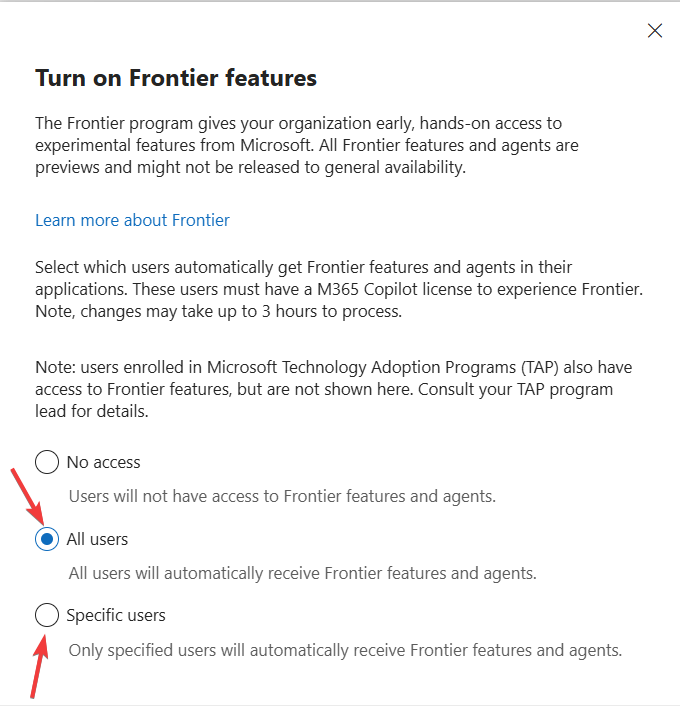
Second, enroll your tenant in the Frontier program. In the Microsoft 365 admin center, go to Copilot, then Settings, then Frontier program, and turn it on. You can enable it for all users or for specific users and groups.

Third, confirm Anthropic is enabled as a Microsoft subprocessor. For US commercial tenants, this was turned on by default starting January 7, 2026, so it is almost certainly already on. To verify, go to Copilot, Settings, then look for AI providers operating as Microsoft subprocessors. Anthropic should be listed and enabled.
Fourth, make sure Word is updated. Go to File, Account, Update Options, Update Now. Note your update channel under About Word. If you are on standard Current Channel, you may have to wait longer for Legal Agent to appear than colleagues on faster channels.
The Bottom Line
If you have the prerequisites configured, the Legal Agent will appear in Word’s Copilot agents list when the rollout reaches your tenant. To find it once available, open Copilot in Word, click the plus button in the chat input, and select Legal Agent (Frontier) from the dropdown. A full Word restart is required the first time it appears.
I will follow up with a hands-on review once the agent is available for testing.